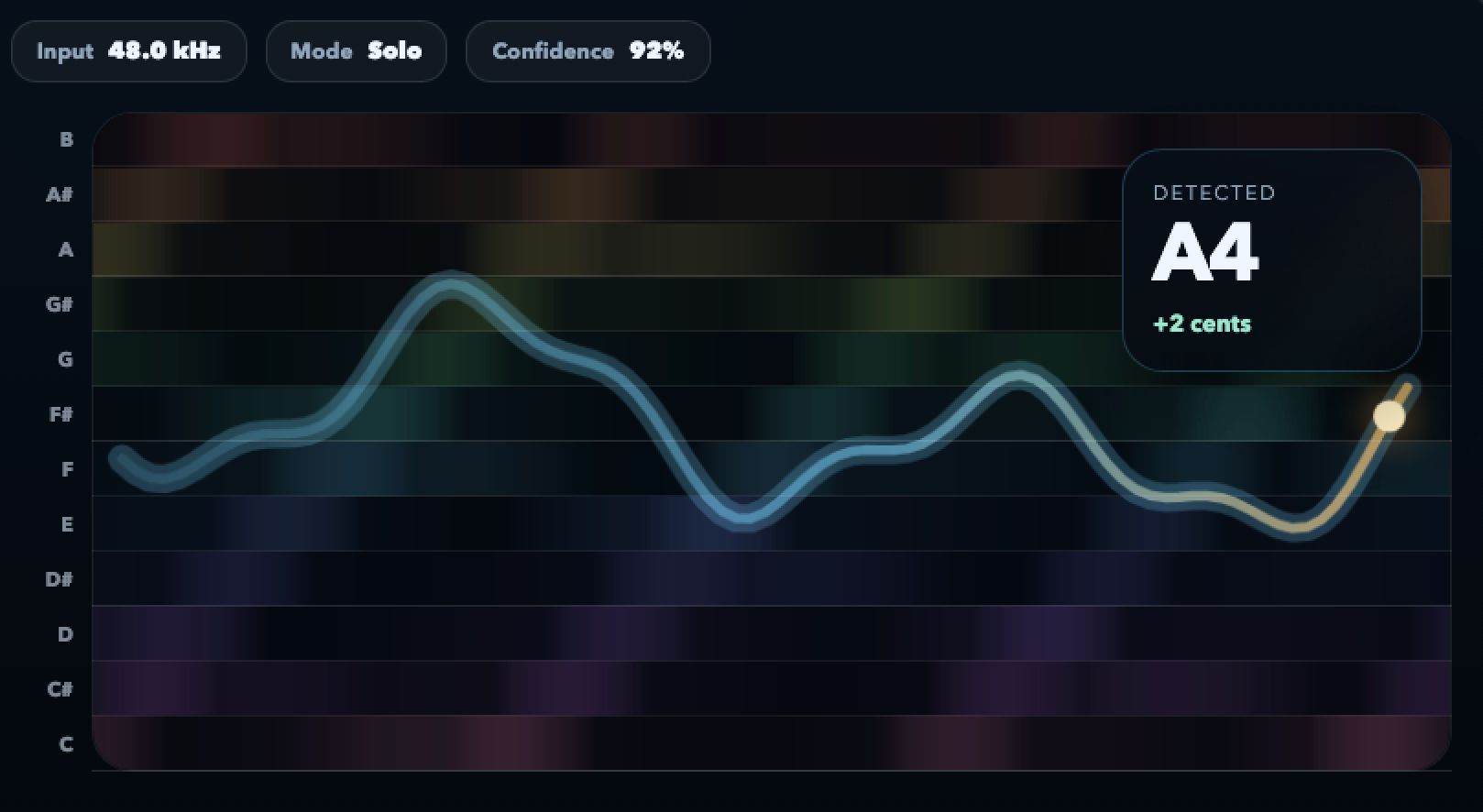
The melody becomes a line you can watch, not a mystery. Flat notes, sliding attacks and sag all show up instantly.
Sing and play at the same time
See your voice and your chord on one screen
Fiume listens to you sing and strum at the same time. The voice melody becomes a live pitch contour, the chord becomes a readable label — so you can finally tell which one is drifting when the song feels off.
Free in your browser. Works with any acoustic guitar, piano or ukulele.
Strum a chord and see its name on screen. Useful when you’re learning a song by ear or writing as you play.
No switching tabs. Voice and instrument share one screen, one mic, one session.
No upload, no sign-up. Everything runs in your browser tab.
Why this matters
Singing and playing fail in different ways
When a song feels off, the usual instinct is to blame the voice. In reality, the problem often lives somewhere more specific, and seeing both layers at once makes it obvious.
Melody drifts under pressure
Strumming takes air. Sustained vocal notes often sag a few cents the moment your hand starts doing something complex. The contour shows exactly when.
Chord voicings confuse the ear
A C/E or D/F# can sound “wrong” if you expected a root-position chord. Seeing the chord name while you play confirms what you actually played.
Transitions hide the problem
Chord changes are where singers rush or land late. Watching both layers reveals whether it was the chord change, the breath, or the entrance that actually slipped.
Who uses it
The players Fiume’s voice + chord monitor was built for
Anyone who holds an instrument and sings at the same time has the problem this tool solves. These are the most common cases.
-
Singer-guitarists Home practice with acoustic or nylon-string. Catch melody drift before it turns into a performance habit.
-
Singer-pianists Voice in the mid range while two hands do the harmony. The contour tells you where the melody was dragged down by the chord.
-
Ukulele songwriters Test a melody against a chord you just discovered, without stopping to write out the chord chart first.
-
Worship & folk leaders Rehearse leading a room — sing lead while playing rhythm, and confirm the melody stays under control.
-
Songwriters in a flow Capture what you just played by seeing the chord name on screen, and test whether a new lyric idea actually fits.
-
Teachers of pop voice Demonstrate how melody behaves over common progressions using one visual reference instead of describing it.
How to use it
Three steps to a tighter sing-and-play
Start narrow. One chord, one line of melody, one comparison. Then build outward.
-
1
Pick one problem phrase
Not a whole song — just the one line that always feels off. Two bars is the right size to start.
-
2
Run it once as a baseline
Sing and strum without trying to fix anything. Watch both layers. Name the specific issue: flat melody, late entrance, clashing voicing.
-
3
Change one thing, run it again
Add air support, change the chord voicing, or slow the strum. Compare the contour against the baseline. Keep whichever change worked.
FAQ
Sing-and-play questions, answered
Will it get confused between voice and guitar?
No. The engine separates the voice melody from the chord underneath, so each one lands in its own lane on screen.
Can I use it with a loop pedal?
Yes. Run the pedal through your interface and feed it into the browser. The monitor will track whatever arrives at the mic input.
How close should I sit to the mic?
Close enough that the voice is clear but not so close that the strum clips. About 20–30 cm from a laptop mic usually works.
Does it work for duets?
It is designed for one voice plus one instrument. Two voices will still be read, but the contour will blend. Better to practice each voice separately and then combine.
Can I record the session?
The monitor itself does not record. Run a recording app in parallel and use the monitor for the live visual feedback.
Is my audio uploaded anywhere?
No. All pitch and chord detection runs inside the browser tab. Your session never leaves your device.
Put your voice and your chords on one screen
Pick one phrase, run it, adjust, run it again. The contour does the judging for you.
Open voice + chord monitorFree, private, no account needed.